
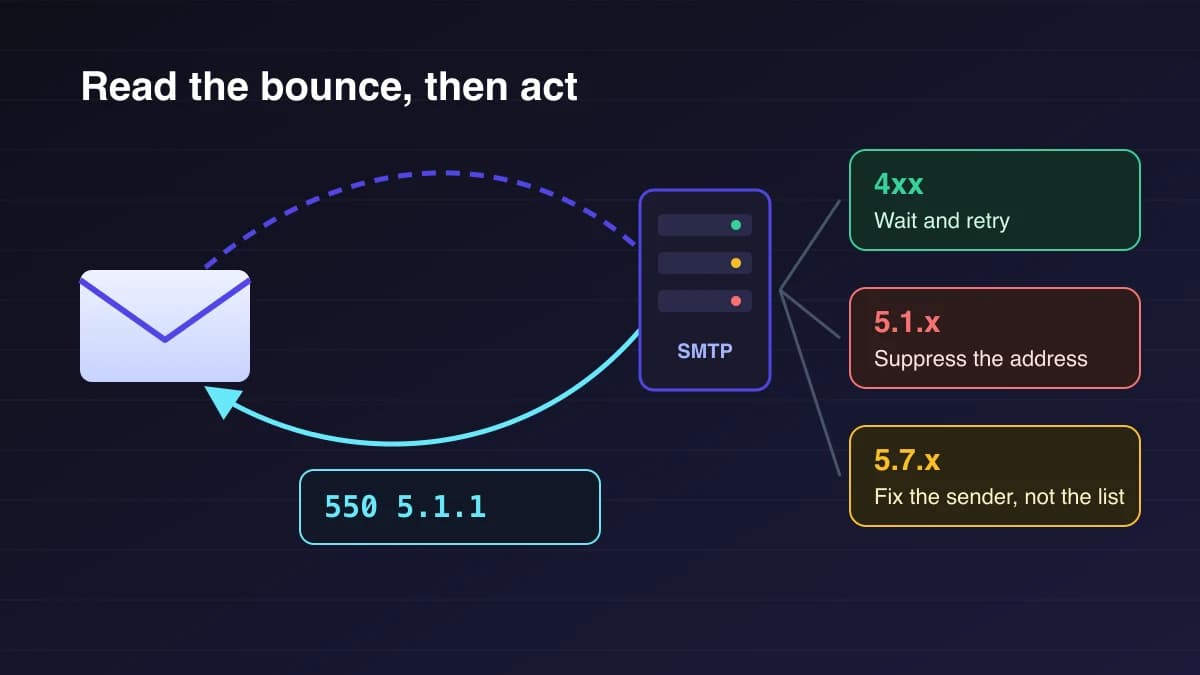
A bounce is a message, not just a number
Every bounced email comes back with a reason, and the reason decides what you should do next. Most campaign reports collapse that reason into one figure, the bounce rate. That figure tells you something went wrong. It does not tell you whether to wait, remove the address, or stop sending and fix your setup.
Those three responses are very different. Removing a valid subscriber because a mailbox was briefly full loses a customer. Retrying an address that does not exist, campaign after campaign, tells mailbox providers you do not look after your list. Treating a policy block as a list problem hides the real issue, which is usually authentication or reputation.
This guide explains how to read the codes inside a bounce, which ones matter most at Gmail, Outlook.com and Yahoo, and how to turn them into simple list rules. If you are new to campaign metrics in general, understanding email analytics is a good primer.
1. The two codes inside a bounce
When your sending server hands a message to a receiving server, the receiver answers with an SMTP reply. A typical rejection looks like this:
550 5.1.1 The email account that you tried to reach does not exist.
There are two codes in that line.
- The basic reply code (550). Three digits defined by the SMTP standard, RFC 5321. The first digit carries the main meaning: 2 means accepted, 4 means a temporary failure, and 5 means a permanent failure.
- The enhanced status code (5.1.1). Defined in RFC 3463 and written as class.subject.detail. The class repeats the meaning of the first digit. The subject, the middle number, tells you which part of the system failed.
The text after the codes is written by the receiving provider. It is often the most useful part, because providers explain their own policies there and link to help pages.
When the failure happens after your server has accepted the message, you receive a separate bounce email instead. Microsoft calls these non-delivery reports (NDRs); the general term is delivery status notification (DSN). The same codes appear inside them.
2. The middle number tells you where to look
RFC 3463 groups enhanced codes by subject. These are the ones you will meet most often:
- X.1.X: addressing. The address itself is the problem, for example a mailbox or domain that does not exist.
- X.2.X: mailbox. The mailbox exists but cannot take mail right now, often because it is full or receiving too much.
- X.4.X: network and routing. DNS, connection or routing problems, including messages that expire in a queue.
- X.7.X: security or policy. The receiver refused the message because of who sent it or how, for example authentication failures, reputation or spam filtering.
This is the most practical idea in the whole topic. A 5.1.X failure is about the recipient. A 5.7.X failure is about you. Both are permanent, but they call for opposite actions.
3. Soft and hard bounces, mapped to the standard
"Soft bounce" and "hard bounce" are not terms from the standards. They are platform shorthand, and different tools draw the line in slightly different places. A useful mapping:
- Soft bounce: any 4XX reply. Temporary. The sending server normally retries on its own for a period before giving up. If it never succeeds, the message expires; Microsoft reports this as 4.4.7, message expired.
- Hard bounce: a 5XX reply with an addressing subject (5.1.X). The address does not exist or cannot be found. Retrying will not help.
- Policy rejection: a 5XX reply with a policy subject (5.7.X). Permanent for that message, but it says nothing about whether the address is valid.
Yahoo's sender guidance is blunt about the second group: do not retry messages that come back with a 5XX error, and list managers should have a policy for removing addresses that generate them. The nuance is in the third group. If a receiver blocks your message for a policy reason, the subscriber may be perfectly real and willing to hear from you once your setup is fixed.
4. Codes you will actually see
These examples come from the providers' own reference pages, linked at the end.
Gmail and Google Workspace
- 550 5.1.1: the account does not exist. Check for a typo; if there is none, suppress the address.
- 452 4.2.2: the recipient's inbox is out of storage. Temporary, so let retries run.
- 552 5.2.2: the inbox is out of storage and inactive. Same subject as above, but permanent. Treat it as a dead address.
- 450 4.2.1: the user is receiving email too quickly. Slow down and retry later.
- 421 4.7.28: Gmail has detected an unusual rate of email from your IP, domain or links and is temporarily rate limiting it. Reduce volume and review your list sources.
- 421 4.7.32: the From: domain is not aligned with the domain that passed SPF or DKIM. This is a DMARC alignment problem in your DNS or sending setup, not in your list.
- 421 4.7.0 (one of several meanings): the sending IP has no matching PTR record, or the message looks suspicious because of low IP or domain reputation.
- 550 5.7.1: a policy blocked the message. Google uses this code for several reasons, including mail it judges likely to be unsolicited and relay credentials that do not match.
That last relay case is worth knowing if you send through Google Workspace's SMTP relay. Google's text reads "Invalid credentials for relay", followed by the connecting IP address. We hit it ourselves while testing a relay connection: the server had started connecting over IPv6, and that address was not the one registered with the relay. The fix was to pin the connection to the registered IPv4 address. No subscriber address was at fault, which is exactly why policy codes should never trigger list cleaning.
Outlook.com, Hotmail and Microsoft 365
- 550 5.1.10: recipient not found. Suppress after checking for a typo.
- 550 5.7.515: the sending domain does not meet the required authentication level. Microsoft applies this to high-volume senders, defined as domains sending 5,000 or more messages to its consumer services, and expects SPF and DKIM to pass and a DMARC record to be published.
- 4.4.7: the message expired in the queue before it could be delivered. Look at the last temporary error that preceded it.
Yahoo and AOL
- 421 or 451: temporary problems that may be retried later.
- 553 or 554: permanent problems. Yahoo asks senders not to retry and to remove addresses that keep generating them, while its own reference explains that some 554 replies relate to authentication and policy rather than to the address.
If you see 5.7.X or 4.7.X codes at more than one provider, start with authentication. Our guide to setting up DKIM, SPF and DMARC walks through the records.
5. Turn codes into written list rules
Bounce handling works best when the rules are written down before anything goes wrong. A simple policy:
- 1. 5.1.X permanent failures: suppress the address after the first occurrence. Check obvious typos first, such as gmial.com, but do not keep sending to fix it.
- 2. 5.2.X permanent failures (inactive or disabled mailboxes): suppress.
- 3. 4XX temporary failures: let your sending system retry. If the same address soft-bounces across several separate campaigns over a few weeks, treat it as inactive. Choose your threshold, write it down, and apply it the same way every time.
- 4. 5.7.X and 4.7.X policy or reputation replies: do not suppress subscribers in bulk. Pause sending to the affected provider if the rejections are widespread, read the provider's text, fix the cause, and resume gradually.
- 5. Spam complaints and unsubscribes: always suppress, whatever the bounce data says.
Keep suppressed addresses on a suppression list rather than deleting them. If someone re-imports an old spreadsheet, the suppression list stops dead addresses and unsubscribed contacts from slipping back in.
6. Watch patterns, not single bounces
One bounce is noise. Patterns are information.
- A spike right after an import usually means an old or purchased list. The fix belongs at the source: verify how contacts were collected, and see our signup form QA checklist for capturing clean addresses.
- Policy rejections at a single provider suggest a reputation or authentication issue with that provider. Gmail's data is available through Postmaster Tools; our Google Postmaster Tools checklist explains how to read it.
- Rate-limit replies on a new domain often mean volume grew too quickly. A gradual ramp, described in our email warmup checklist, is the usual remedy.
- Expired messages point to a long run of temporary errors. Look at the earlier replies, not just the final failure.
Break bounces down by receiving domain after each campaign. A total bounce rate can look healthy while one provider quietly rejects most of your mail.
How BestEmail fits
BestEmail's campaign analytics include bounce and unsubscribe monitoring, and its sender setup includes unsubscribe and suppression handling. Its guided domain authentication helps you put SPF, DKIM and DMARC in place before you send at volume. You can compare what each plan includes on the BestEmail pricing page and see the full feature list on BestEmail features. No sending platform can override a receiving provider's policy decision; what good tooling can do is make the reason visible and keep your list rules consistent.
FAQ
What is the difference between a 4XX and a 5XX bounce?
A 4XX reply is temporary, and the sending server will normally retry it automatically. A 5XX reply is permanent for that message, so retrying the same message will not succeed.
Should I delete every address that returns a 5XX error?
No. Suppress addresses that return addressing failures such as 5.1.1 or 5.1.10. Policy rejections such as 5.7.1 or 5.7.515 mean the receiver refused your message, not that the address is invalid. Fix the cause before deciding anything about the subscriber.
Why does Gmail say a mailbox is full?
Gmail returns 452 4.2.2 when the recipient's storage is full, which is temporary. If the account is also inactive, it returns 552 5.2.2, which you should treat as permanent.
How many soft bounces before I remove a contact?
The standards do not set a number, and platforms differ. Pick a clear threshold based on repeated failures across separate campaigns, record it in your list policy, and apply it consistently.
Where do I find the bounce code?
In the delivery log of your sending platform, or inside the non-delivery report sent back to the sender address. Look for a three-digit code followed by a code in the form 5.1.1, then read the provider's explanation that follows.
Sources checked on 12 October 2026
- RFC 3463: Enhanced Mail System Status Codes
- RFC 5321: Simple Mail Transfer Protocol
- Google Workspace Admin Help: SMTP error reference
- Microsoft Learn: Email non-delivery reports and SMTP errors in Exchange Online
- Microsoft Support: Fix NDR error 550 5.7.515 in Outlook.com
- Yahoo Sender Hub: SMTP error codes