
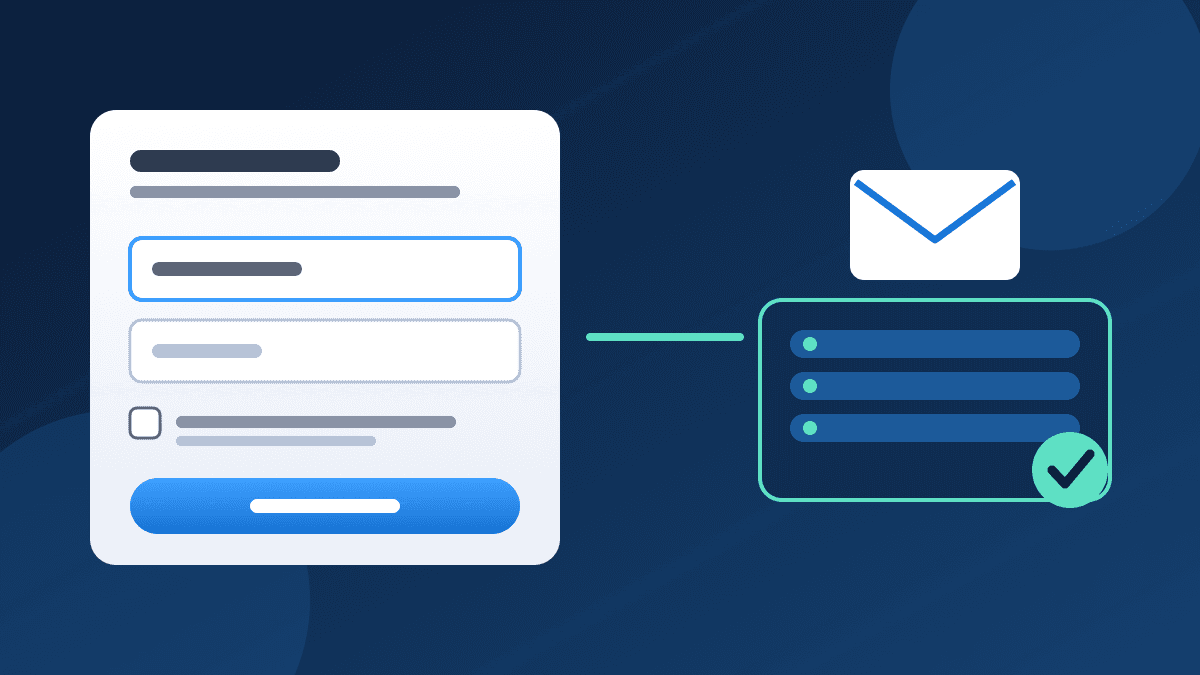
A signup form is the front door of your email list, and most of the damage to deliverability starts there. Too many fields cost you subscribers, vague consent text invites spam complaints, and a form that accepts typos fills your list with addresses that bounce. This guide covers the design choices that matter: what to ask for, where to put the form, how to word the consent, and how to make it work for everyone who visits.
It is written for small teams that run a newsletter, a store or a service business and want a list of people who actually want the emails. If you have already built the form and need to test it end to end, use our signup form QA checklist. This article comes first in the process: it is about designing the form so there is something worth testing.
Start with the one promise the form makes
Every good signup form makes a single, specific promise: who will email, about what and how often. "Subscribe to our newsletter" promises nothing. "One email on Fridays with the three best offers from our store" tells the visitor what they are agreeing to, and that same sentence protects you later, because people who knew what they signed up for rarely mark the message as spam.
Write the promise before you touch the layout, and keep it next to the button. If you send more than one kind of mail, for example a weekly newsletter and occasional product news, say so, or offer two separate checkboxes.
Ask for as little as the first email needs
Nielsen Norman Group's guidance on web forms starts with a simple rule: keep it short. Its summary of a CHI paper by Seckler and colleagues reports that when forms followed basic usability guidelines, 78% of users submitted without errors on the first try, against 42% for forms that broke them. Fewer, clearer fields mean fewer mistakes and fewer abandoned forms.
For most lists the field decision looks like this:
- Email address: required, always.
- First name: optional, and only if your emails will actually use it. A greeting with a wrong or empty name looks worse than no greeting.
- Interest or segment: a single dropdown or checkbox set is fine if it changes what you send. Skip it if everyone gets the same email.
- Phone, company, city, birthday: ask later, once the person has read a few emails and trusts you.
A useful test: for each field, name the email you will send that you could not send without it. If you cannot, remove the field. You can always collect more through a short preference page after the welcome email.
Make every field label do its job
Put a visible label on every field. Placeholder text that disappears when someone starts typing is not a label, and it leaves people guessing if they are interrupted halfway. The W3C Web Accessibility Initiative's forms tutorial explains that a label should be associated with its input in code, so that browsers make the label a larger clickable area and assistive technology reads out the right name.
Two more details that help everyone:
- Mark what is required and what is optional in plain words, rather than relying on a colour or an asterisk alone.
- Use the correct input type for the email field and the standard autocomplete attributes. WCAG 2.2 success criterion 1.3.5, Identify Input Purpose, asks that fields collecting personal details declare their purpose in code so browsers can fill them in. For a visitor on a phone this saves typing and prevents typos.
Do not add a Reset or Clear button next to Subscribe. NN/g has advised against reset buttons on web forms for years, because one accidental tap wipes everything the visitor typed.
Choose the button text and the placement carefully
The button should say what happens: "Send me the Friday email" is clearer than "Submit". Place it directly under the last field, in the same column, so there is one obvious path through the form.
Where the form lives matters as much as how it looks. These placements work for most small sites:
- Inline at the end of a useful article. The reader has just seen your work and the offer is relevant. This is usually your highest quality source because people arrive with intent.
- A dedicated signup page you can link from social profiles, email signatures and invoices.
- The footer, as a quiet, always-available option.
- A pop-up or slide-in, only if you can control it: trigger it after real engagement, never on the first second of a page view, make it easy to close on a phone, and do not show it again to someone who dismissed it.
Whatever you choose, test the form on a small phone screen first. Many visitors arrive on a phone, and a form that needs pinching or sideways scrolling loses them.
Word the consent so nobody is surprised
Consent is the part of the form that protects your sender reputation, not just your legal position. People who did not expect your email are the ones who click the spam button, and complaints do more harm than any subject line.
Good consent wording follows a few habits:
- Say what they will receive and how often, in the same place as the button.
- Never pre-tick a marketing checkbox. If marketing is optional, the visitor should choose it. Our guide to email laws for Indian businesses explains why permission needs to be clear, and your own legal adviser should confirm what applies to your list.
- Do not bundle the signup with something unrelated, such as a download, in a way that makes people feel they had no choice.
- Link to a plain-language privacy page from the form, and tell people how to unsubscribe.
Some senders confirm each new address with a message that contains a link, often called double opt-in. It adds a step and some people never finish it, but it proves the owner of the mailbox asked to be on the list and it stops one person signing up someone else. Whether you use it is a trade-off between list size and list quality; whichever you choose, apply it consistently and say on the form what will happen next.
Cut bad addresses at the door
A form is also your first line of defence against bounces. Hard bounces damage your reputation with mailbox providers, and our guide to email bounce codes shows how to read what they are telling you. Design choices that help:
- Use the email input type so phones show the right keyboard and browsers catch obvious mistakes.
- Do not ask visitors to type their address twice. It annoys real people and bots do not care. Instead show a clear error when the format is wrong and let them correct it.
- Check on the server as well as in the browser. Browser checks are a convenience, not protection.
- Add a simple abuse control, such as a hidden field that real people never fill or a rate limit, and match its strength to the real risk of your form.
Tell people what happens next
The moment after the click is where many forms fail. A success message that says only "Thanks!" leaves people unsure whether to check their inbox. Say exactly what happens: "You are on the list. Your first email arrives within a few minutes. If you do not see it, check your Promotions or spam folder and add us as a contact."
Then make that promise true. A subscriber who signs up and hears nothing for a week has forgotten you by the time the first email lands. A welcome email series sent straight away, with the content you promised on the form, is the best way to turn a signup into an engaged reader.
Measure the form and improve one thing at a time
Once the form is live, watch three numbers: how many visitors see it, how many submit it, and how many of those go on to open the first email. Change one element at a time, such as the button text, the number of fields or the placement, so you know what caused the result. Do not judge a change on a handful of signups. Wait until you have enough visits for the difference to mean something.
For wider ideas on where to find the right people to put in front of the form, see our guide to list building strategies.
Where BestEmail fits
BestEmail's forms and lead capture let you use hosted or embeddable forms and route submissions into your subscriber list, where you can manage tags and segments, import and deduplicate contacts, and handle unsubscribes and suppressions. The design choices above are yours to make: the fields, the wording and the placement. The platform's job is to make sure the people who sign up land in the right list, so that your first campaign goes to people who asked for it.
FAQ
How many fields should a newsletter signup form have?
Start with the email address alone. Add a first name only if you will use it in your emails, and add other fields only when each one changes what you send. You can ask for more through a preference page after the welcome email.
Should I use a pop-up signup form?
You can, but control it. Trigger it after the visitor has engaged with the page, make it easy to close on mobile and do not show it again after it has been dismissed. An inline form at the end of a helpful article often attracts more committed subscribers.
Is a confirmation email required?
It is a choice, not a universal rule. A confirmation step proves that the mailbox owner asked to join and reduces fake signups, but some people do not complete it. Decide based on your list quality problems, and check what applies to your business with a legal adviser.
Why do my signup emails go to spam?
Often because the form did not set expectations, so people do not recognise the sender. Say what you will send, send the welcome email at once from a name people recognise, and make sure your domain authentication is in place before you start.
Sources
- Nielsen Norman Group: Website Forms Usability: Top 10 Recommendations
- W3C Web Accessibility Initiative: Forms Tutorial: Labeling Controls
- W3C Web Accessibility Initiative: Forms Tutorial: Form Instructions
- W3C: Understanding SC 1.3.5: Identify Input Purpose (WCAG 2.2)