
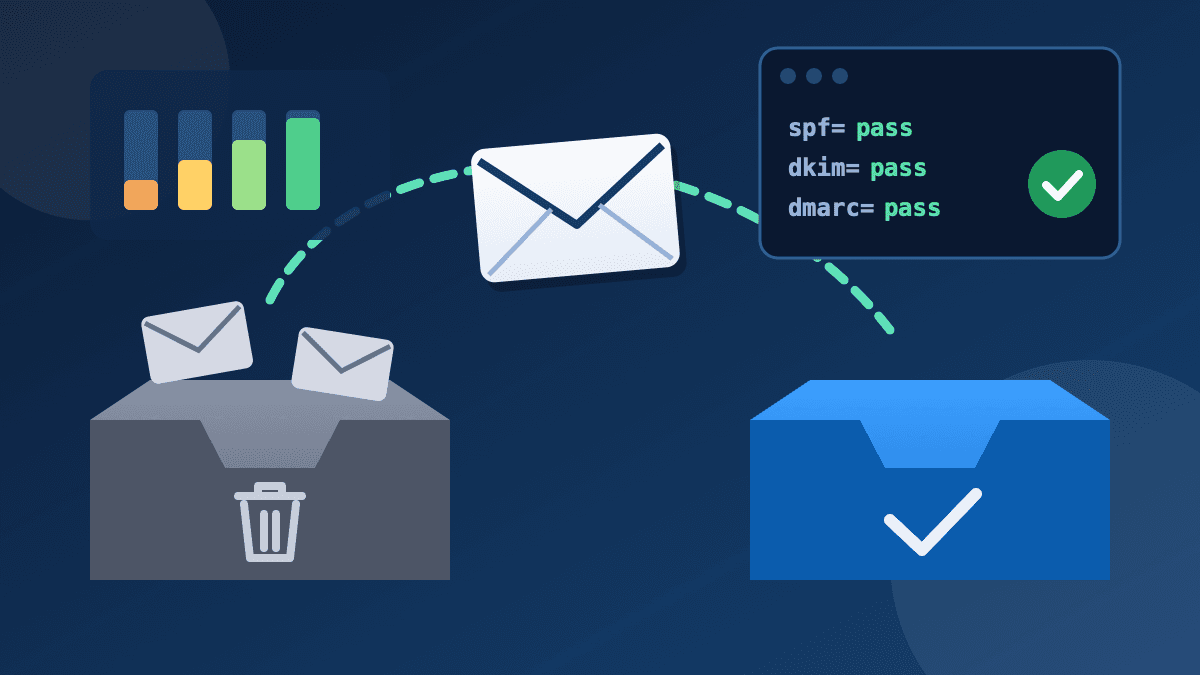
If your campaign reaches Gmail inboxes but lands in Outlook's Junk Email folder, the problem is usually not your subject line. Microsoft decides where your mail goes from whether your domain authenticates, how your sending IPs and domain behave over time, and how Outlook users react to you. This guide explains what Microsoft actually checks, how to read the evidence in your own headers, and what to fix first.
It is written for business senders whose newsletters, offers or receipts go to hotmail.com, outlook.com, live.com or Microsoft 365 work mailboxes. If your problem is Gmail rather than Outlook, read our companion guide on why emails land in the Gmail spam folder instead. The basics overlap, but the tools and signals differ.
Two different Outlooks
"Outlook" covers two separate filtering systems, and it helps to know which one you are dealing with:
- Outlook.com consumer mail covers addresses on hotmail.com, live.com and outlook.com. Microsoft's sender requirements and its postmaster tools (SNDS and the Junk Email Reporting Program) are aimed at this service.
- Microsoft 365 work mailboxes are the company addresses that businesses host with Microsoft. Their filtering is run by Exchange Online Protection and Defender for Office 365, and each company's IT admin can add its own rules on top.
A B2B list usually contains both. If only one company's staff sends your mail to Junk, look at that organisation's own settings first. If every hotmail.com address sends you to Junk, the problem is with your sending setup.
What Microsoft requires from senders
On 2 April 2025 Microsoft announced new requirements for domains that send more than 5,000 emails a day to Outlook.com. They are short:
- 1. SPF must pass for the sending domain, and the SPF record must accurately list the IP addresses and hosts that are allowed to send for you.
- 2. DKIM must pass, so the receiver can confirm the message was not altered and really came from your domain.
- 3. DMARC must exist with at least p=none and align with either SPF or DKIM, preferably both. Alignment means the domain in your visible From address matches, or is a subdomain of, the domain that passed SPF or DKIM.
Microsoft first said non-compliant mail would go to Junk. In an update to the same post on 29 April 2025, it said messages failing these checks would be rejected with the error "550; 5.7.515 Access denied, sending domain [SendingDomain] does not meet the required authentication level", starting on 5 May 2025. If you see that code in your bounce log, authentication is your first job. Our guide to email bounce codes explains how to read the rest of the reply.
Smaller senders are not off the hook. Microsoft's FAQ on the change says enforcement targets large senders first but that all senders benefit from these practices, because strong authentication protects your reputation. In practice, a small shop with broken DKIM gets filtered more than one that authenticates properly.
The same post lists four hygiene recommendations that matter just as much to the Junk folder:
- A real From or Reply-To address on your true sending domain that can receive replies.
- A clearly visible unsubscribe link that works when clicked.
- Regular removal of invalid addresses and bounces.
- Accurate subject lines, no deceptive headers and recipients who consented to hear from you.
Microsoft says it may filter or block senders that break these rules, especially in serious cases.
Seven reasons your emails go to the Outlook junk folder
1. SPF, DKIM or DMARC fails or does not align
This is the most common cause and the easiest to prove. A frequent hidden problem is an SPF record with too many include statements: Microsoft's FAQ notes that if your SPF record needs more than 10 DNS lookups, the SPF check can fail. Another is a sending tool that signs DKIM with its own domain instead of yours, so DKIM passes but does not align with your From address. Our SPF, DKIM and DMARC guide walks through each record, and the DMARC report checklist shows how to find senders that are failing in your reports.
2. Your sending IP has a weak reputation
Microsoft's SNDS page says plainly that deliverability to Outlook.com is based on your reputation, and that reputation is always the responsibility of the sender. On shared sending infrastructure you inherit some of that reputation, which is why your provider's own sending policies matter.
3. Outlook users mark you as junk
Each "Junk" click tells Microsoft that recipients do not want your mail. Complaints usually come from people who do not remember signing up, people who were added without consent, or people who could not find the unsubscribe link. Our spam rate send-pause checklist explains when to stop a campaign and investigate.
4. Your list has old or invalid addresses
Hotmail and Outlook addresses on old lists are often abandoned. Hard bounces and dormant recipients hurt your standing. Microsoft's FAQ suggests removing inactive or invalid addresses regularly, monthly or quarterly. A re-engagement campaign helps you decide who to keep before you delete anyone.
5. You started sending at volume overnight
A new domain or IP that suddenly sends a large campaign looks like the behaviour filters are built to catch. Increase volume gradually and start with your most engaged readers. Our email warm-up checklist gives a practical order.
6. Your From address cannot receive replies
A no-reply address on a domain that does not accept mail breaks Microsoft's recommendation that From or Reply-To addresses should be valid and able to receive replies. Use a monitored address on your own domain.
7. Marketing and transactional mail share one stream
When password resets and order receipts share a domain and IP with promotional blasts, complaints about the offers can drag the receipts into Junk too. Separating the two streams is covered in our guide to transactional vs marketing email.
How to diagnose it with your own headers
Do not guess. Send a real campaign to an Outlook.com test address and to a Microsoft 365 work address you control, then open the message headers. Microsoft's support pages explain how to view internet message headers in each version of Outlook.
Look for the Authentication-Results header. It shows the result of the SPF, DKIM and DMARC checks. In Microsoft 365 it also carries "compauth", Microsoft's composite authentication result. Microsoft's documentation explains that compauth combines SPF, DKIM, DMARC and other parts of the message, using the From domain as the basis of the evaluation. If "dmarc=fail" or "compauth=fail" appears, fix authentication before you change anything else.
In Microsoft 365 work mailboxes, the X-Forefront-Antispam-Report header adds more detail:
- SFV:SPM means spam filtering marked the message as spam.
- SFV:NSPM means it was judged not spam and delivered.
- SFV:SFE means filtering was skipped because the sender is on that user's Safe Senders list.
- CAT: shows the policy category that was applied, such as "BULK", "SPM" (spam) or "SPOOF".
The separate BCL (bulk complaint level) value matters for newsletters. Microsoft says a higher BCL means a bulk message is more likely to generate complaints. A high BCL with passing authentication points to your content and list, not your DNS.
Use Microsoft's free sender tools
- SNDS (Smart Network Data Services). If you control your own sending IPs, request access to see how Outlook.com rates them. SNDS shows data about individual IPs so you can keep lists clean and watch for unusual behaviour.
- Junk Email Reporting Program. Managed from the same SNDS site, it sends you reports when Outlook.com users junk your messages, so you can remove complainers before they hurt you further.
- Outlook.com sender support. For an urgent deliverability problem, Microsoft's postmaster site links to a sender support form. Use it after you have fixed authentication, not before.
If you send through a shared platform, you will not own the IPs. Ask your provider how they monitor Outlook.com reputation.
A fix order that works
- 1. Check the bounce log for 5.7.515 and other 5xx codes.
- 2. Confirm SPF, DKIM and DMARC all pass and align in a real Outlook.com header.
- 3. Shorten SPF if it exceeds 10 lookups; sign DKIM with your own domain.
- 4. Remove hard bounces and long-inactive addresses; stop sending to people who never opted in.
- 5. Make the unsubscribe link obvious and process opt-outs promptly.
- 6. Send from a monitored address on your own domain.
- 7. Restart at a lower volume to your most engaged Outlook readers and increase gradually.
- 8. Recheck headers on the next send and watch complaints.
What to ask your recipients to do
For important mail such as invoices or appointment reminders, it is reasonable to ask customers to add you to their safe senders. Microsoft's Outlook.com help says that adding an address or domain to Safe Senders makes sure messages from it don't get moved to Junk. This fixes delivery for that one mailbox only. It is a courtesy for loyal customers, not a substitute for fixing your setup.
Where BestEmail fits
BestEmail's sender setup features include domain authentication records, guided sender-domain verification with SPF, DKIM and DMARC checks, Cloudflare-assisted DNS sync, and unsubscribe and suppression handling. Campaign analytics cover bounce and unsubscribe monitoring with per-campaign summaries, so you can see which send caused a problem. Our deliverability page lists what to set up before you send at volume. None of it replaces a clean, permission-based list, but it removes the technical reasons Microsoft has to distrust your mail.
FAQ
Why do my emails go to junk in Outlook but not in Gmail?
The two providers use different filters and reputation data. Mail can pass Gmail's checks while your sending IP has a poor reputation at Outlook.com, or while Outlook users report you more often. Check a real Outlook.com header and SNDS rather than assuming Gmail results apply.
Do I need DMARC if I send fewer than 5,000 emails a day?
Microsoft's enforcement targets domains sending more than 5,000 emails a day, but its own FAQ says all senders benefit from SPF, DKIM and DMARC. A p=none DMARC record is simple to publish and starts your reporting.
What does error 550 5.7.515 mean?
Microsoft uses it to reject mail from a high-volume sending domain that does not meet the required authentication level. Fix SPF, DKIM and DMARC alignment, then send again.
Sources
- Microsoft Defender for Office 365 Blog: Strengthening Email Ecosystem: Outlook's New Requirements for High-Volume Senders
- Outlook.com Postmaster: Sender policies and announcements
- Outlook.com: Smart Network Data Services (SNDS)
- Microsoft Learn: Anti-spam message headers in Microsoft 365
- Microsoft Learn: How email authentication works in Microsoft 365
- Microsoft Support: Safe Senders in Outlook.com
- Microsoft Support: View internet message headers in Outlook