
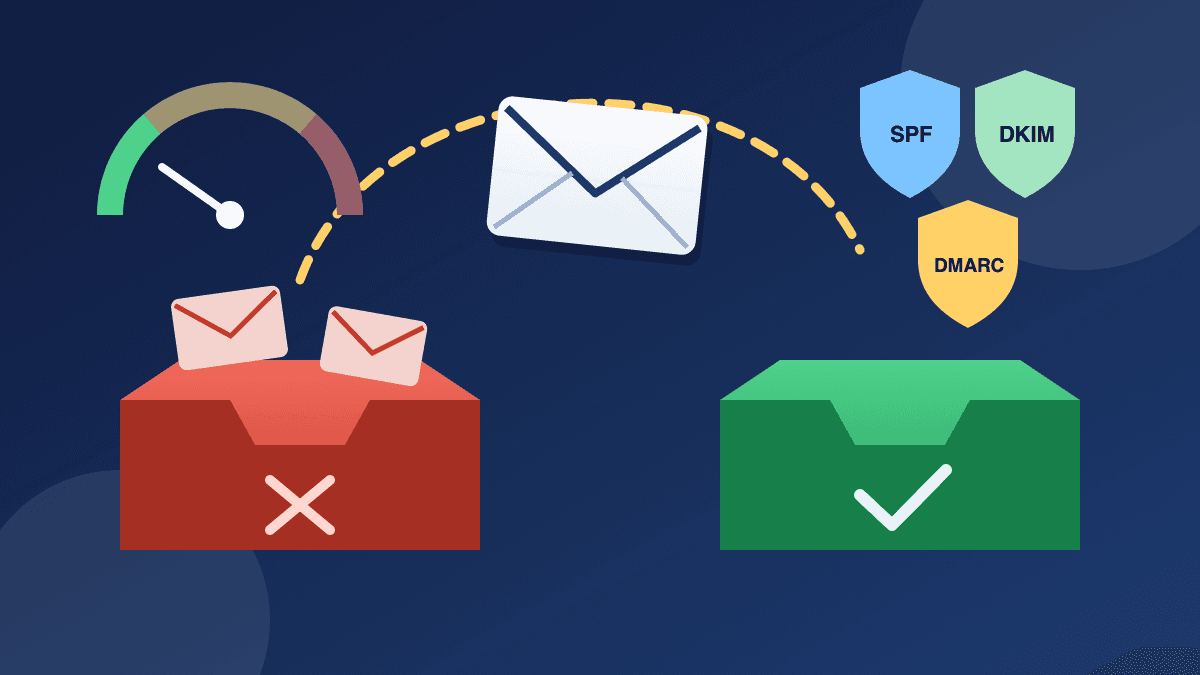
If your emails keep landing in the Gmail spam folder, the cause is almost never one "spammy" word. Gmail decides where a message goes from who sent it, whether that sender can prove it, how recipients have reacted to the sender before and how the message is built. Fix those four things in that order and most small senders can work their way back to the inbox.
This guide is for business senders: shops, clinics, agencies, SaaS teams and D2C brands whose newsletters, offers or receipts are being filtered. It explains what Gmail checks, how to find out which check you are failing and what to change first. For the wider picture, keep our email deliverability guide for India open alongside it.
Spam folder or Promotions tab? Check this first
People often say "spam" when they mean the Promotions tab. They are not the same thing:
- Promotions tab: the message was delivered to the inbox and sorted as marketing. That is normal for newsletters and offers, and it is not a deliverability failure. Our Gmail Promotions tab guide covers it.
- Spam folder: Gmail judged the message unwanted or untrustworthy. This one costs you real readers.
- Not delivered at all: the message was rejected or rate limited, and your sending tool should show a bounce or deferral code.
Send a test to a personal Gmail address you control and look at where it actually arrives before you change anything.
Read the warning Gmail shows you
Gmail's own help page on reporting spam says that a warning at the top of each email in Spam explains why it was sent there. Open your test message in the spam folder and read that banner. It is the fastest free diagnosis you will get. The warnings that matter most for business senders:
- "Messages from an unconfirmed sender". Gmail can't confirm who sent the email. This usually points to an authentication problem: SPF, DKIM or DMARC is missing, broken or not aligned with your From address.
- "You tried to unsubscribe from this sender". Gmail moves mail straight to Spam when a sender keeps emailing someone who unsubscribed. If a customer shows you this banner, your unsubscribe handling is broken.
- Spoofed address or phishing warnings. Your From address or links look like impersonation. Use your own domain and plain, readable links.
- "Emails you sent to Spam". The recipient reported you earlier. Gmail may send that sender's future mail to Spam as well.
Seven common reasons emails go to the Gmail spam folder
1. Your domain does not authenticate
Google's email sender guidelines require everyone sending to personal Gmail accounts to set up SPF or DKIM. Senders of 5,000 or more messages a day need SPF, DKIM and DMARC, and the domain in the From header must align with the SPF or DKIM domain. Google's sender FAQ says that from November 2025 Gmail is ramping up enforcement, and non-compliant messages face temporary and permanent rejections or spam foldering.
What to check: send a test to Gmail, open it, choose "Show original" and confirm that SPF, DKIM and DMARC all say PASS. If any fails, our SPF, DKIM and DMARC guide walks through the records. Google also requires a DKIM key of at least 1024 bits and recommends 2048.
2. You send from a free mailbox address
Sending a campaign "from" a gmail.com address through a marketing tool is a fast route to spam. Google's guidelines tell senders not to impersonate Gmail From headers and say Gmail will use a DMARC quarantine enforcement policy for them. Use an address on your own domain, such as news@yourbrand.in, and authenticate that domain.
3. Recipients report you as spam
Every "Report spam" click is a direct signal. Google asks all senders to keep the spam rate reported in Postmaster Tools below 0.3%, and its FAQ says that senders above that level lose access to delivery support and mitigations. Complaints usually come from people who forgot they signed up, never signed up or could not find the unsubscribe link. Our spam rate send-pause checklist explains what to do when that number climbs.
4. Your list contains people who never asked to hear from you
Google's guidelines are blunt: don't buy email addresses, and don't send to people who didn't sign up. Those recipients are the most likely to mark you as spam, and Google says future messages to them will then be marked as spam too. Old, unengaged lists cause the same problem more slowly. Use a confirmed signup form (see our signup form QA checklist) and retire inactive contacts with a re-engagement campaign.
5. Volume jumped suddenly
A new domain that sends 20,000 emails on its first day looks like a spammer. Google recommends sending at a consistent rate, avoiding bursts and starting with low volume to engaged users before increasing it slowly. It adds that you can raise volume more quickly when you send daily rather than weekly. If you are on a new domain or a new sending service, follow a warm-up schedule.
6. Unsubscribing is hard or slow
Bulk senders must support one-click unsubscribe and show a clearly visible unsubscribe link in the message body. Google's FAQ lists unsubscribe requests that aren't honoured within 48 hours as a compliance problem. A hidden or broken unsubscribe link pushes readers towards the spam button instead.
7. The message itself looks deceptive
Google's guidelines warn against hiding content with HTML and CSS, against display names that carry subject lines or offers, and against links that don't make clear where they go. They also recommend one From address per message type, for example a receipts address and a separate deals address, so the reputation of your promotions doesn't drag your order confirmations down with it. Our guide to transactional vs marketing email explains how to keep the two apart.
How to get your emails out of the Gmail spam folder
Work in this order. Content tweaks come last because they rarely fix a reputation or authentication problem on their own.
- 1. Fix authentication. SPF, DKIM and DMARC on the sending domain, aligned with the From address. Start DMARC at p=none and read the reports; our DMARC report checklist shows what to look for.
- 2. Check the infrastructure basics. Google requires valid forward and reverse DNS (PTR records) for sending IPs and a TLS connection. If you use an email service provider, confirm it handles both. On a shared IP, the guidelines note that other senders' behaviour affects your reputation too.
- 3. Set up Google Postmaster Tools. It shows your spam rate, authentication results and, through its compliance status dashboard, whether you meet the sender requirements. Our Postmaster Tools checklist covers the setup.
- 4. Read your bounce and deferral codes. Gmail returns specific codes when it rate limits mail: 4.7.27 for failed SPF, 4.7.30 for failed DKIM, 4.7.31 for a missing DMARC record, 4.7.32 for From alignment, 4.7.23 for PTR problems and 4.7.29 for missing TLS. Our bounce codes explainer decodes the rest.
- 5. Cut the audience back to engaged people. Send the next few campaigns only to subscribers who opened or clicked recently, then widen the audience slowly. Fewer, better recipients rebuild reputation faster than another big blast.
- 6. Make leaving easy. A visible unsubscribe link, a one-click unsubscribe header and removals processed within 48 hours.
- 7. Then tidy the content. A clear sender name, an honest subject line, readable links, real text rather than one large image, and no hidden content.
- 8. Keep sending steadily. A predictable schedule to people who want your mail is what moves reputation back up. Pausing everything and then returning with one huge send undoes the recovery.
What recipients can do, and why it is not your fix
Gmail lets a reader select a message in Spam and click "Not spam". According to Gmail Help, future emails from that sender then won't go to Spam, and adding the sender to Google Contacts has the same effect. It is fine to ask new subscribers to add your address to their contacts in a welcome email. But it only helps the few people who act on it. Your reputation is shaped by everyone else, so treat "Not spam" requests as a courtesy, not a deliverability strategy.
A 15-minute spam check before every campaign
- Test send to a personal Gmail account and confirm it arrives in the inbox or Promotions, not Spam.
- "Show original": SPF, DKIM and DMARC all PASS.
- The From address is on your own domain and matches the message type.
- The unsubscribe link is visible and works, and the one-click header is present.
- The audience excludes hard bounces, unsubscribes and long-inactive contacts.
- Volume is in line with your last few sends, not a sudden jump.
- The Postmaster Tools spam rate is comfortably below 0.3%.
Where BestEmail fits
BestEmail's sender setup features include domain authentication records, guided sender-domain verification with SPF, DKIM and DMARC checks, Cloudflare-assisted DNS sync, and unsubscribe and suppression handling. Campaign analytics include bounce and unsubscribe monitoring and per-campaign summaries, so you can see which send caused a problem. Our deliverability checklist lists what to fix first. None of it replaces a clean, permission-based list, but it removes the technical reasons Gmail has to distrust your mail.
FAQ
Why are my emails going to spam in Gmail even though I have SPF?
SPF alone is not enough for bulk senders. Gmail requires SPF, DKIM and DMARC from anyone sending 5,000 or more messages a day, and the From domain must align with SPF or DKIM. Complaints, a bought or stale list and sudden volume spikes can still send authenticated mail to spam.
How long does it take to get out of the Gmail spam folder?
There is no fixed timeline. Authentication fixes apply from the next send, while a damaged domain reputation recovers gradually as you send steadily to engaged recipients with a low spam rate. Track progress in Postmaster Tools rather than guessing.
Does Gmail send mail to spam after someone unsubscribes?
Yes. Gmail Help says that if a sender emails you after you unsubscribe, their emails go directly to Spam. Process unsubscribes promptly; Google's FAQ uses a 48-hour window.
Will marking my own test emails as "Not spam" fix the problem?
It changes delivery for that one mailbox only. Google's guidelines also warn against marking internal messages as spam, because it can hurt your domain's reputation. Fix authentication, list quality and complaints instead.
Sources
- Google Workspace Admin Help: Email sender guidelines
- Google Workspace Admin Help: Email sender guidelines FAQ
- Gmail Help: Report spam in Gmail
- Google: Postmaster Tools